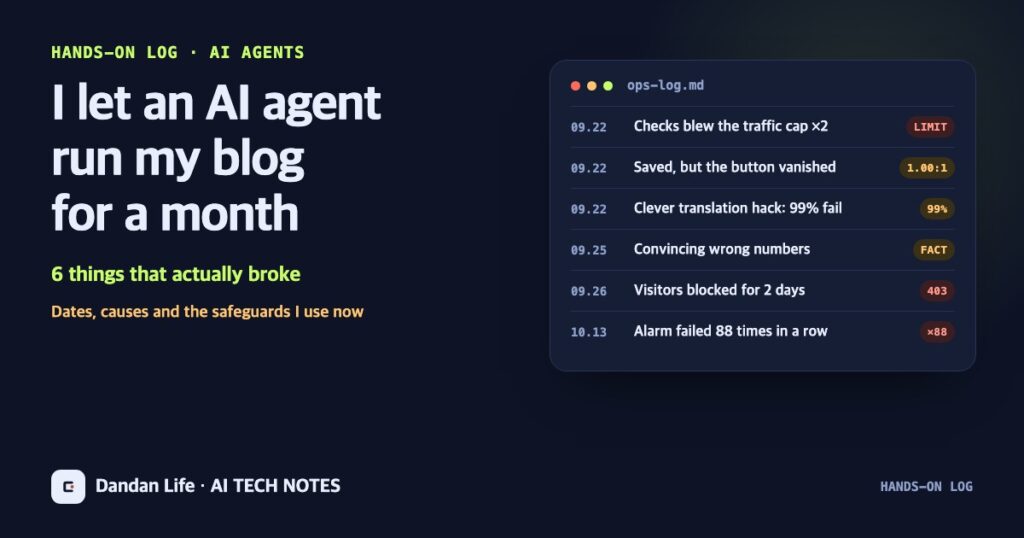
I Let an AI Agent Run My Blog for a Month: 6 Things That Actually BrokeA blown traffic cap, two days of blocked visitors, an invisible button, convincing wrong numbers and alarms nobody read for weeks. The dates, the causes and the safeguards I use now
This blog uses AI tools for drafts, illustrations and some code. But the work I handed to AI most often was not writing. It was running the site. I let an AI agent that drives a real browser edit posts in WordPress, purge the cache and check how the site shows up in search.
From September 21 to October 24, 2026, roughly a month, I picked six incidents from the operations log. The last one I found only while going back through the records to write this post. Every one of them happened on this site, and the dates and numbers are copied from the records of the time. If you are thinking about using an agent, I hope this helps you decide what to hand over and where a person still has to check.
- Checking the work was itself a cost. Loading page after page, the agent pushed the host past its daily traffic cap twice in one day.
- The longest outage was not the agent’s mistake. A hosting security feature switched itself on. The setting lived in an account only a person could open, so it took almost two days from discovery to fix.
- “Saved” and “looks right on screen” turned out to be different things. Safeguards break too: two automated alarms had been sending failure emails for weeks, and nobody opened them.
01What I handed over, and what I kept
Most of what the agent did was repetitive. It saved posts and styles in the WordPress editor and admin screens, purged the Cloudflare cache for pages that changed, read numbers from Search Console and Analytics, and checked that the sitemap and robots.txt came out right.
What I kept was just as clear: deciding what to publish, posting to or editing outside channels such as my Naver blog, and signing in to the hosting and billing accounts. I did not draw that line on day one. It got firmer with each incident below.
02Incident 1: checking the site blew the daily traffic cap, twice Sep 22
What happened. To check the mobile layout, the agent opened the WordPress Customizer preview, and the host’s notice appeared instead: “Today’s daily visit limit has been reached.” The odd part was that the home page still answered HTTP 200, the “all good” code. Going by the status code alone, nothing was wrong. The page body was the notice.
I lifted the cap from the hosting dashboard and the site came back within minutes. That evening, I asked the agent for a search-visibility audit and it happened again. While the agent loaded more than 15 pages in a row (the home page, 11 posts, the about, contact and privacy pages, categories, robots.txt, the sitemap and ads.txt), the site hit the cap, and every request after that timed out.
Why. The plan at the time allowed 1.6 GB of traffic a day. There were almost no visitors. What used up the cap was editor previews and repeated checks. In other words, the agent’s checking.
When an agent checks its own work, the checking costs something. Two days later I put a Cloudflare cache in front of the site, so reloading the same page no longer reaches the origin server. I also capped requests that pull many posts at once. And I no longer treat a 200 as proof that a page is fine. I check that the text I expect is actually in the body.
03Incident 2: browser visitors were blocked for almost two days Sep 26–27
What happened. Around 2:40 a.m. Toronto time on September 26, the agent was fixing a post title when it got a strange reply. Instead of WordPress data, it received a security check page of about 800 bytes. A normal browser went through that check three times and then landed on “403 Forbidden.” Logged-in admins skip the cache, so every page, including the admin screens, was blocked. Neither I nor the agent could fix anything on the site.
It got worse. Because the check page looked like a normal response, Cloudflare cached it. For a while, robots.txt, ads.txt, the sitemaps, the RSS feed and the about, contact and privacy pages were all replaced by the check page. Allow-listed bots such as Google’s crawler, on the other hand, got the real pages. That is why search-side tools barely showed the problem.
Finding the cause. The agent went through the host’s bot blocking, country blocking, IP blocking and web firewall settings one by one. None of them was the cause. The culprit was a hosting security feature called Spam SHIELD. It is off by default, but according to the host it can switch itself on when it sees a lot of abnormal traffic. Its block log listed 367 Canadian IP addresses, most of which looked like Cloudflare’s Toronto servers. I still have not confirmed exactly what flipped the switch.
The fix. On the night of September 27, only after I signed in to the hosting dashboard could the setting be turned back off. As soon as it was saved, normal browsers could reach the site again.
The agent narrowed down the symptoms quickly, but the cause sat in an account only a person could open. Where the permissions stopped, the fix stopped. I kept two safeguards after this. Cloudflare now follows the origin server’s cache instructions, so a response like that check page does not stay cached for long. And every three hours a GitHub Actions job visits the site like a normal browser and emails me a failure if the check page comes back.
04Incident 3: saved successfully, but the button was invisible Sep 22–23, three times
What happened. The label on the home page’s “See published posts” button disappeared. I was the one who noticed, looking at the screen, not the agent. When we measured the colors, the text and the background were both rgb(37, 39, 34). A contrast ratio of 1.00: not hard to read, simply invisible.
Why. The agent had added a rule so the theme’s dark mode would not clash with our styles. That rule forced links to take the surrounding text color, and it also swallowed buttons made later. The same thing happened again on the home page’s “What to watch” cards and, the next day, on the English home page’s button. Every one of those saves succeeded.
The measurement had a trap too. Measured with the mouse hovering over the button, the contrast ratio came out at 5.53 and looked fine. The problem only showed up when we measured again with the mouse moved away.
“Saved” is not the same as “looks right.” Now I screenshot every changed screen on mobile and desktop, in light and dark mode, and look at it myself. When measuring colors, nothing hovers over the element.
05Incident 4: a clever-looking approach failed 99% of the time Sep 22
At first I wanted a single Korean post with a “Read in English” button. Pressing it would find each Korean sentence on the page and swap in the English one. No need to keep two copies of every post. It sounded neat.
It failed. WordPress changes paragraphs, spacing and special characters slightly when it renders a post. So the Korean sentences prepared in advance did not match what was actually on screen. About 99% of the text pieces on the page found no match. In the end I switched to a simple structure: a separate English post, linked both ways.
A simple structure I understand and can fix myself lasts longer than a clever workaround an agent suggests. Before adding something new, I first ask: “If this breaks, who notices, and how?”
06Incident 5: convincing wrong numbers Sep 25, Oct 20, Oct 23
This one never took the site down, but it is the one to watch most closely. Most errors in AI drafts were not wild sentences. They were correct numbers placed in the wrong context.
What the automated checker caught. On September 25, I collected model prices and release dates into a single reference file and built a checker that compares published posts against it. Its first run over 40 posts found three problems.
- The price of a model that was no longer sold (DeepSeek V4-Flash) was still in two posts.
- The output price of one model (Kimi K3) had no verified source.
- A sentence was far too absolute: “if you only let it compare options, there is no payment risk.”
All three were fixed, and the check was set to run daily on GitHub Actions. That checker later ran into trouble of its own, which comes up below. I wrote up how I built it and what it caught separately.
What human review caught. The AI agent harness post published on October 20 went through two outside reviews. The paper’s “15.1% → 36.0%” was the result on the problems used during improvement only; the overall result was 18.0% → 36.7%. A similar method had been published months earlier, yet one passage read as if the new study introduced it first. The Claude Duet post published on October 23 was also revised after three rounds of review. The first version left out that Claude’s existing Cowork also supports cloud execution and scheduled tasks, so it read as if only Duet could do that. It now describes the difference as Duet coming to you first with briefings and asking for approval. I had also first misread the waitlist email requirement as “either one” and fixed it after checking the help pages again.
I recheck numbers in the original tables, not in articles or summaries, and I write down the conditions behind each number. The checker also flags absolute phrasing such as “there is no risk” and sentences that state a company’s unannounced motives as fact.
07Incident 6: alarms that stayed red for weeks Sep 30 – Oct 24
I found this one when I reopened the automated check logs for this post. Both safeguards mentioned above were failing. The access check that runs every three hours failed 88 times in a row, from 11:36 p.m. on October 13 to the night of October 24. The daily fact check had been failing even longer, every day since September 30. The failure emails arrived like clockwork, and nobody opened them.
Why the access check failed. During a security pass on the night of October 13, I changed the site so that anonymous visitors opening the front page of WordPress’s data API (the REST API) get a 401, “authentication required.” The access check used exactly that page to detect host blocking. When it got the 401, it concluded the hosting security feature was back on. The site itself was fine. The same report even had a line saying “Visitor check: all pages served normally.”
Why the fact check failed. From September 30 it reported nine “mismatches” for numbers missing from the reference file, such as discounted cached-input prices or a cost per task. Each one needed sorting: was the file incomplete or was the post wrong? They just piled up. From October 13 the same security setting also stopped the checker from reading post bodies at all.
After the fix. On the night of October 24 I fixed both tools. The access check now probes a data address that opens without signing in, and from run 89 it was back to normal. The fact checker now reads posts from their public pages, and I checked the nine findings against the original sources one by one. In all nine, the post’s numbers were right. Either the reference file had no field for things like cached-input prices, or the checker had attached a number to the wrong model.
When failure alerts arrive every single time, they turn into noise. When an alarm goes off, I now decide that day whether it is a real problem or a problem with the checking tool, and if it is the tool, I fix the tool. When I change a security setting, I also check the tools that depended on it. And an alarm should show what it checked and what response it actually got, so a false alarm can be spotted quickly.
08My 7 rules now
These are the rules that survived the six incidents. If you hand website work to an agent, feel free to take them as they are.
- Check the latest state before saving. Confirm the last-modified time and the content match what you read, so a long-open editor tab cannot overwrite a newer version.
- Read it back after saving. Confirm only the intended part changed.
- Purge only the URLs that changed. Purging everything dumps the load on the origin server.
- Check screens with screenshots. Mobile and desktop, light and dark mode.
- Don’t trust status codes alone. Even with a 200, confirm the expected content is in the body. Likewise, judge a failure alert by the response it actually received.
- Outside channels only after approval. Posting or editing on my Naver blog happens only after I have checked it.
- Accounts and billing stay with a person. I sign in to hosting, billing and security settings myself, and the agent only does what is needed on that screen. On days I change a security setting, I also check the automated test results.
The best part of handing this work to an agent for a month was the repeated checking and the record-keeping. It narrowed down possible causes quickly and logged what changed and when, without gaps. What to publish, how far to change things and which accounts to open stayed a person’s job to the end. If you want to think more about how to split permissions with an agent, read the difference between AI agents and automation and the story of the AI agent harness next.
Sources and scope of this post
This post is based on this blog’s operations records (work logs and change logs). Dates are in Toronto time. For security reasons, server addresses, detailed firewall rules and account details are left out. The exact reason the hosting security feature switched on and the origin of the blocked IP addresses could not be confirmed, so they are marked as estimates.